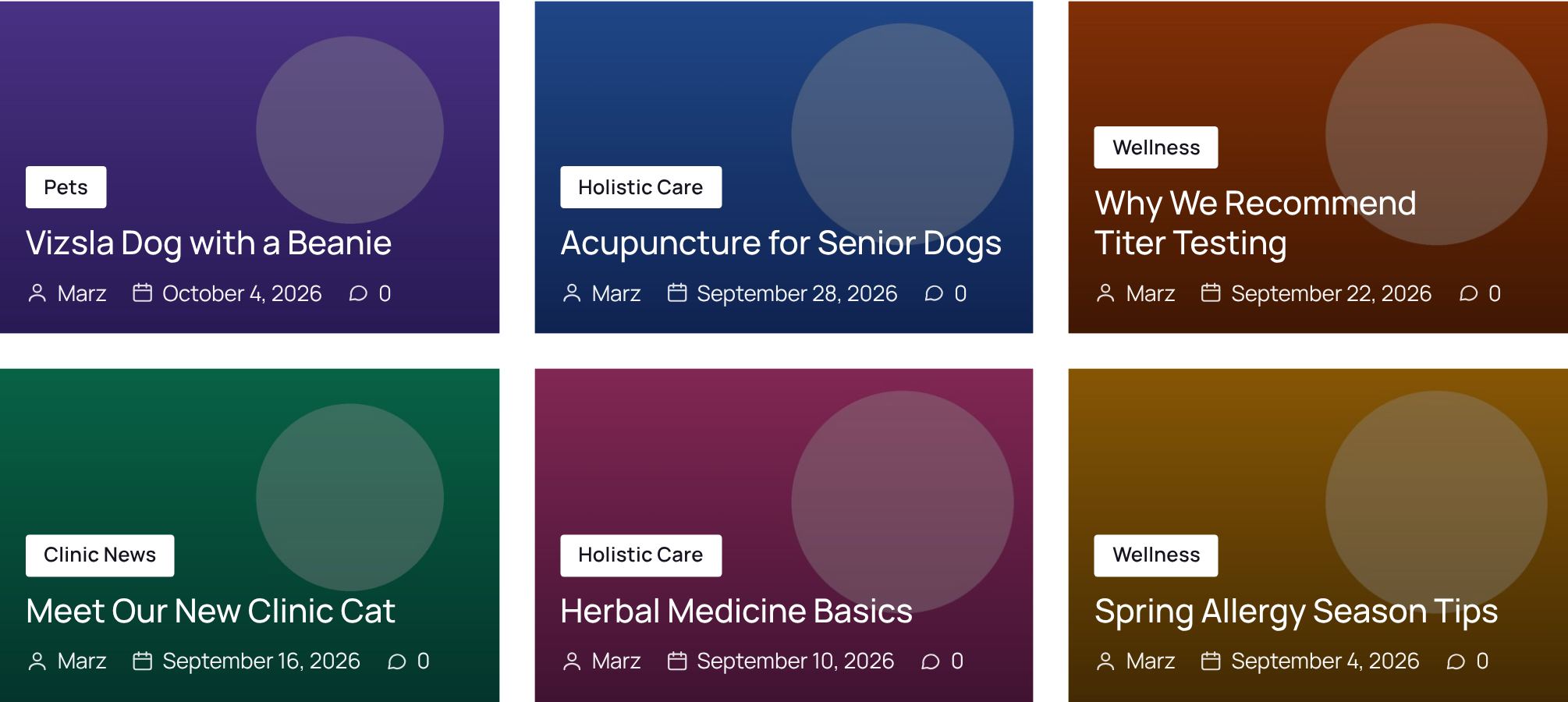
JMarzTech Content Layouts shows your posts and pages as grids, masonry, lists and sliders — with their categories, tags, dates, author and your own custom fields on every card. You build a display once and place it anywhere with a shortcode or the Elementor widget. Your content stays in ordinary WordPress posts and pages; nothing is copied.
Quick start
- Install and activate the plugin. See Installing JMLayouts.
- Go to JMLayouts → Displays and click + New display.
- Click a look under Start from a look — Magazine, Classic Blog, News List…
- Choose which posts to show under Which items, then click Save display.
- Copy the shortcode, for example
[jmcl_display id="1"], into any page, post or Elementor Shortcode widget.
All documentation
Getting started
- Installing JMLayouts — requirements, free and Pro, updating
- Your first display — from nothing to a grid on a page in two minutes
- Preset looks — the twelve ready-made styles and what each one sets
Building displays
- Choosing which items — content types, categories, fields, hand-picked posts, order
- Layout styles — grid, masonry, list and slider; columns, image shape, spacing
- Card text — what each card says, badges, icons, text over images
- Sliders and carousels — arrows, dots, effects, autoplay
- Visitor controls — search, filters, sorting, page numbers and Load more
Your content
- Custom fields — add your own fields to posts and pages, no ACF needed
- The Library and bulk editing — edit hundreds of posts like a spreadsheet
- Single post and page layouts — Classic, Wide image, Minimal and six Pro layouts
Reference
- Shortcodes — every shortcode and attribute
- Elementor — the Shortcode widget, the Pro widget and Theme Builder
- JMLayouts Pro and your licence — what Pro adds, and what happens if a licence lapses
- Troubleshooting and FAQ
- For developers — hooks, CSS custom properties, template overrides