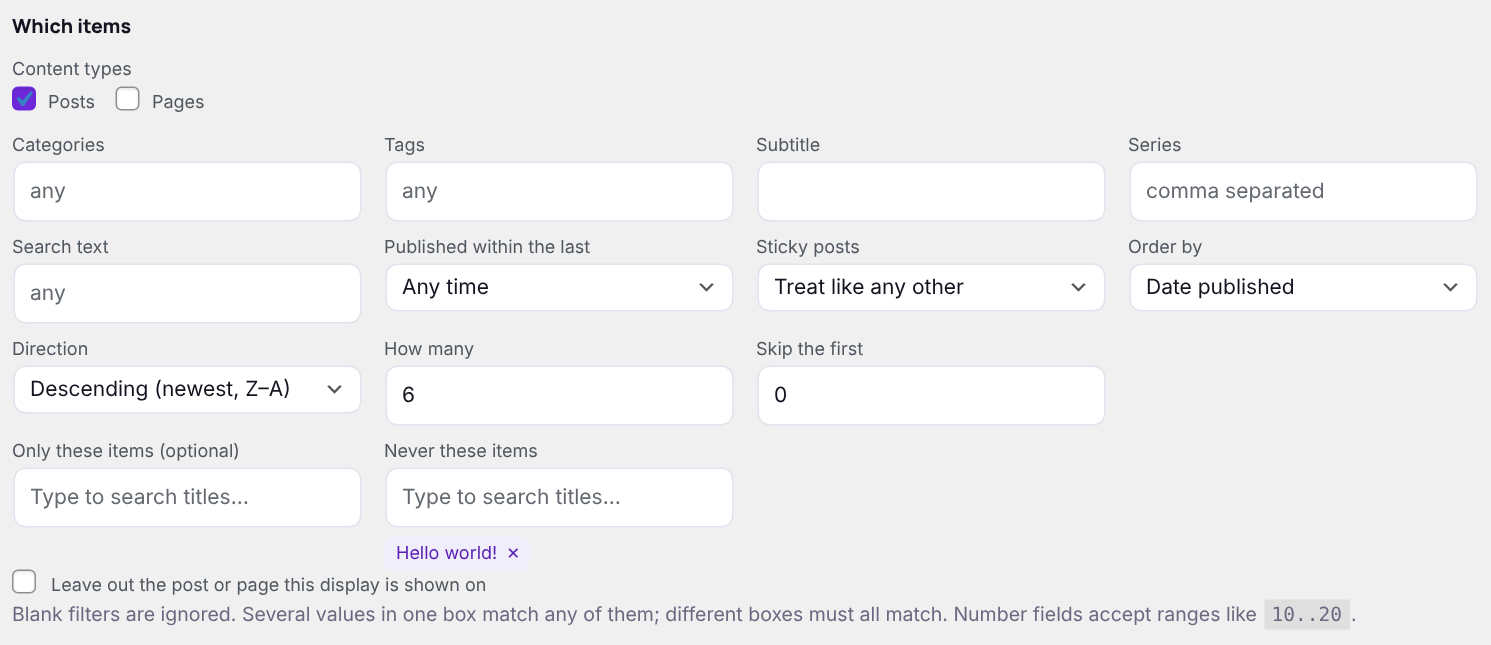
The Which items section decides what a display shows. Blank boxes are ignored, so an untouched display shows your latest posts. Several values in one box match any of them; different boxes must all match.
| Setting | What it does |
|---|---|
| Content types | Posts, Pages, or both. With Pro, other content types you switch on under Settings appear here too. |
| Categories, Tags and other taxonomies | Type names, separated by commas. Suggestions appear as you type. A parent category includes its children. |
| Custom fields | One box per filterable field. Text matches anywhere in the value; numbers and dates match exactly or by range, e.g. 10..20 or 2024-01-01..2024-12-31. |
| Search text | Only items whose title, content, custom text fields or category/tag names contain these words. |
| Published within the last | Any time, 7 days, 30 days, 3 months or 12 months — good for “this week” lists. |
| Sticky posts | Treat like any other, show first, only sticky posts, or leave them out. |
| Order by / Direction | Date published, date updated, title, page order, comment count, random, the order you picked items in, or any sortable custom field. |
| How many | The number of items to show. 0 shows all of them. With pagination on, Per page is used instead. |
| Skip the first | Leave out the first N matches — for example a grid that starts after the three posts already in your slider above it. |
| Only these items | Search titles and pick specific posts or pages. Choose Order by: The order picked below to show them in your order. |
| Never these items | Pick posts or pages to always leave out. |
| Child pages of | Shown when Pages is ticked: only the child pages of the page you choose. Pair with Order by: Page order for a services or team page. |
| Leave out the post or page this display is shown on | On by default, so a “more posts” display at the bottom of an article never lists that article itself. |
Good to know: Displays only ever show published items to visitors. Drafts, private and scheduled posts never appear.
Next: Layout styles