The four styles
| Style | Best for |
|---|---|
| Grid | Even rows of cards. Images are cropped to the Image shape you choose so every row lines up. |
| Masonry | Photo-heavy posts. Every image keeps its own proportions and cards pack into columns, Pinterest-style. |
| List | News and blogs. The image sits beside the text — as a thumbnail on the left, or large with the text on the left. One or two rows across. |
| Slider | Featured posts. One card at a time with arrows and dots; Pro adds carousels and effects. See Sliders and carousels. |
Layout settings
| Setting | What it does |
|---|---|
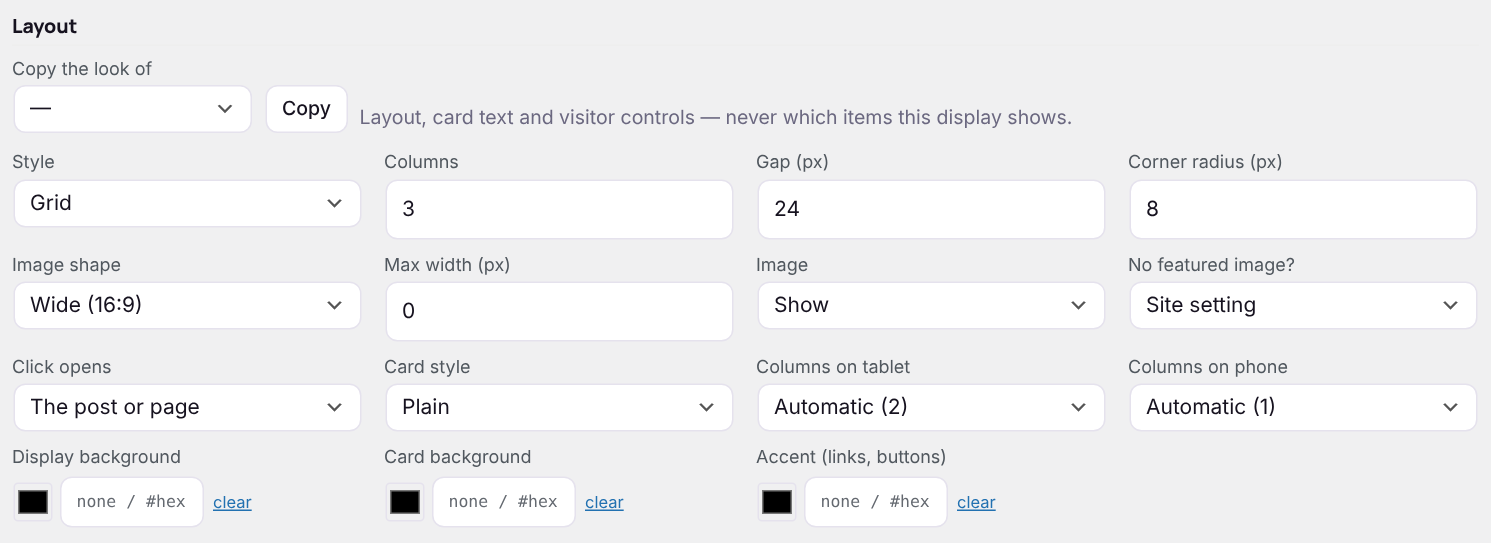
| Columns | 1 to 6. On tablets the grid drops to 2 columns and on phones to 1. With Pro you set the tablet and phone columns yourself. |
| Gap | Space between cards, 0–80 px. |
| Corner radius | Rounded corners on cards and images, 0–40 px. 0 gives square corners. |
| Image shape | Original proportions, Square 1:1, Standard 4:3, Photo 3:2, Wide 16:9, Cinematic 21:9, Portrait 3:4 or Tall 2:3. Images are cropped from the centre to fit. |
| Max width | Caps the display’s width and centres it. 0 fills the space it is placed in. |
| Image | Show images, or No images for text-only cards. |
| No featured image? | What a card shows when a post has no featured image: the site setting, the first image found in the post, a placeholder (the first letter of the title on a purple tile), or a text-only card. |
| Click opens | The post or page, the post in a new tab, or nothing. |
| Image position / Rows across | List style only — see above. |
The first image in the post
When a post has no featured image and the display (or the site setting under Settings → Images) says to use the first image in the content, Content Layouts looks in this order: images in the post content (block or classic editor, galleries), images in an Elementor design, the real image behind a lazy-load placeholder, images uploaded while editing that post, and finally images that only appear once shortcodes run. The answer is remembered until the post is next edited, so it costs nothing on later page views.
Copy the look of another display
Copy the look of at the top of the Layout section takes another display’s layout, card text and visitor controls — never its items — so a set of displays can share one style. Click Save display to keep it.
Pro: card styles and colours
Pro: With Pro the Layout section also offers a card style (plain, boxed, outlined or raised with a shadow), a display background, a card background, an accent colour for links and buttons, and separate column counts for tablets and phones.
Next: Card text