Fields let every post or page carry extra information — a subtitle, a series, a price, an event date — that can appear on cards, on single pages and as a visitor filter. Manage them under JMLayouts → Fields.
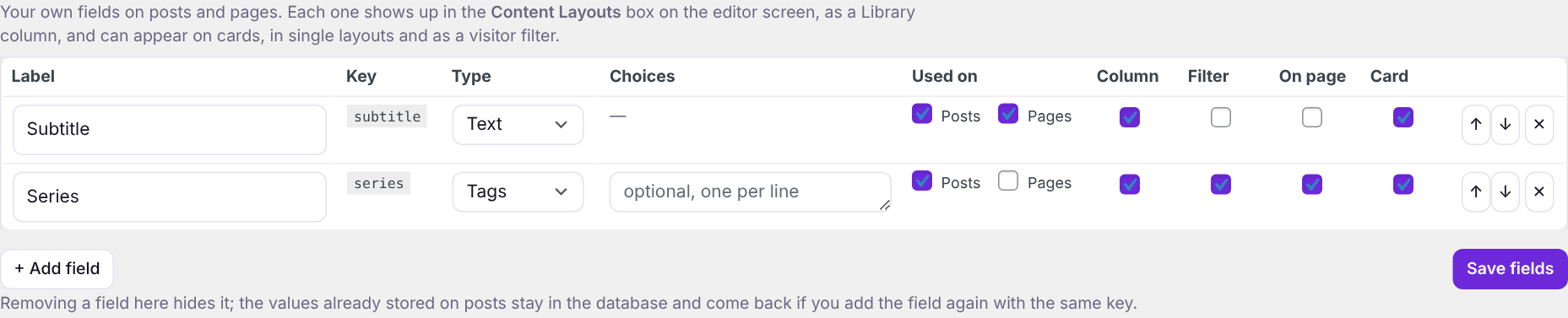
Field types
| Type | Holds | Edition |
|---|---|---|
| Text | A short line of text. | Free |
| Number | Any number, decimals included. Sortable; filter by ranges like 10..20. | Free |
| Date | A calendar date (years from 1800 on). Sortable, and filter by ranges like 2026-01-01..2026-06-30. | Free |
| Tags | Any number of values, like WordPress tags. Each value gets its own archive page. | Free |
| Long text | Several lines of text, shown with paragraphs on single pages. | Pro |
| Link | A web address; cards show the site name, single pages a link. | Pro |
| Yes / no | A simple switch; visitors can filter by it. | Pro |
Field settings
| Column | Meaning |
|---|---|
| Label / Key | The label is what people see. The key is made from it when you first save and never changes, so values stay attached even if you rename the label. |
| Choices | Tags fields only: suggested values offered while typing. |
| Used on | Which content types show the field — for example a Series field on posts only. |
| Column | Shown as a column in the Library. |
| Filter | Offered as a Library filter and as a visitor filter dropdown. |
| On page | Shown in the details list of single layouts. |
| Card | Available to add to card text. |
Filling in fields
Every post and page editor gets a Content Layouts box below the content with your fields for that content type. It works in both the block editor and the classic editor. To fill in many posts at once, use the Library.

Good to know: Removing a field only hides it. The values stay in your database and return if you add a field with the same key again. Changing a field’s type does not convert values already stored.