A display is a saved combination of which items to show and how they look. You can make as many as you like and reuse each one on any number of pages.
1. Create the display
Go to JMLayouts → Displays and click + New display. Give it a name you will recognise later, such as “Homepage – latest news”.
2. Pick a look
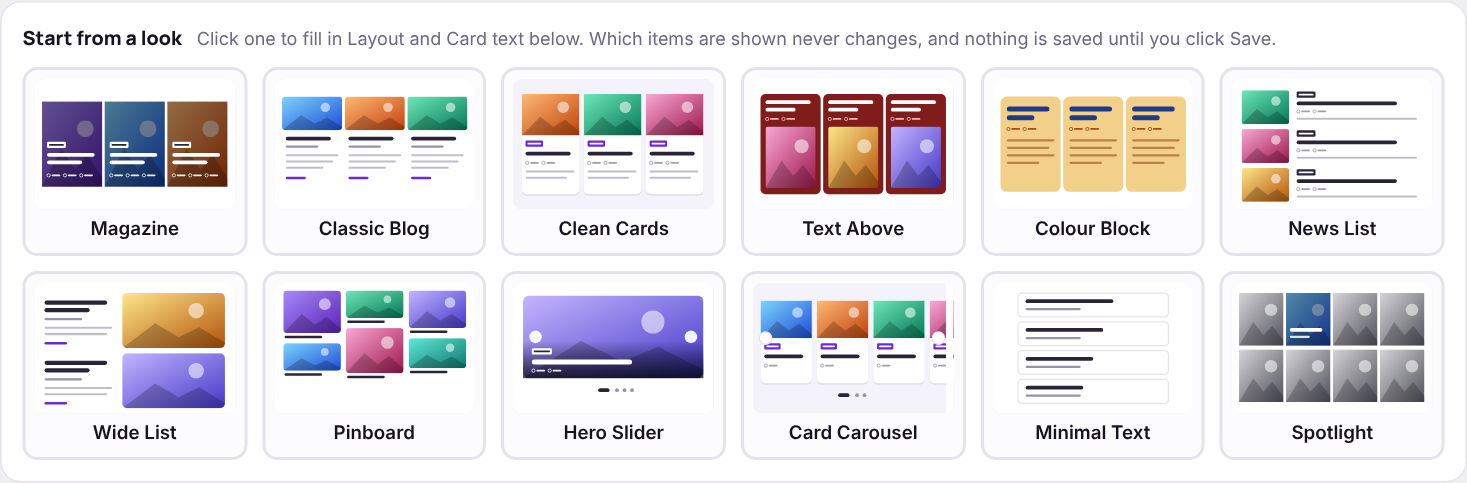
At the top of the form, Start from a look shows twelve ready-made styles. Click one: the Layout and Card text sections fill in and a live preview opens underneath. Nothing is saved yet, so try as many as you like.
3. Choose which items
Under Which items, tick the content types (Posts, Pages) and narrow it down if you need to: a category, a tag, a custom field, a date range, or hand-picked posts. Leave everything blank to show your latest posts. Set How many to the number of cards you want.
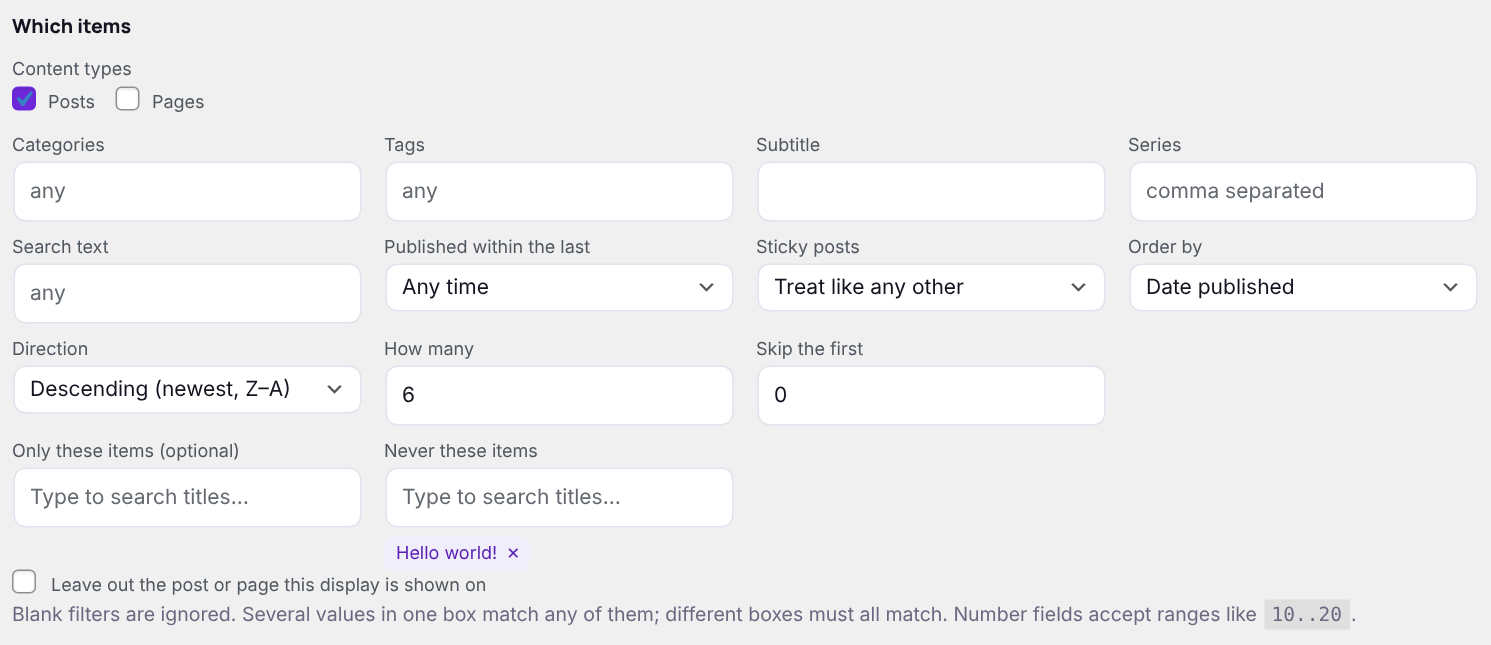
All the options are explained in Choosing which items.
4. Save and place it
Click Save display. A shortcode appears under the buttons — click it in the list on the left to copy it — and paste it where the display should appear:
- Block editor: add a Shortcode block and paste.
- Classic editor: paste it on its own line.
- Elementor: drag in a Shortcode widget and paste — or, with Pro, use the JMLayouts Display widget.
[jmcl_display id="1"]5. Fine-tune
Come back to the display any time. Change the layout, the card text or the items and click Save display — every page using it updates at once. Preview shows your changes before you save, and Duplicate makes a copy to experiment with.
Tip: Deleting a display checks first whether any page uses its shortcode and tells you how many — so you never leave a page with an empty space by accident.
Next: Preset looks